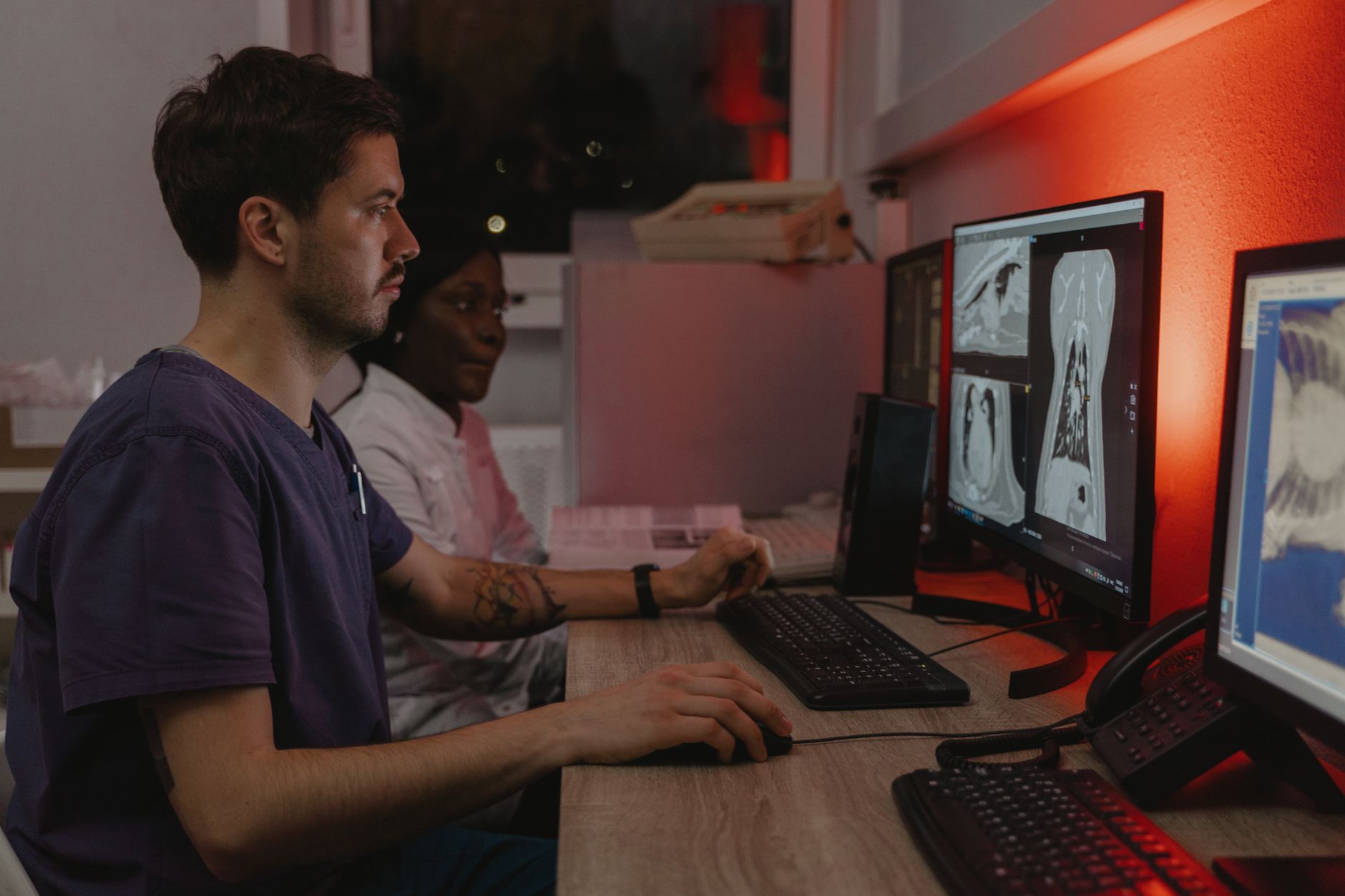
A nurse finishes a shift on Ward 4, walks to a workstation on Ward 7, types her credentials, and within seconds she's looking at her own desktop wallpaper, her pinned applications, her patient list — exactly as she left it. The machine she's sitting at has never been personally configured for her. Nobody from IT touched it before she arrived. Yet the computer knows precisely who she is and what she needs. This is the quiet infrastructure magic behind roaming user profiles on shared workstations in healthcare, and understanding how it works reveals a surprisingly elegant system built on decades of enterprise networking design.
Why Hospitals Can't Use Personal Computers the Traditional Way
In a typical office environment, one person owns one PC. Their settings, files, and applications live locally on that machine's hard drive. This model breaks down completely in a hospital. Clinical areas operate around the clock across multiple floors and buildings. A physician might document notes at a nursing station, then move to a consultation room, then to a ward round, logging in and out of workstations across a dozen locations in a single shift. Buying and maintaining a dedicated machine per staff member is neither practical nor cost-effective at that scale.
The solution hospitals settled on is the shared workstation — a fixed terminal that belongs to a location, not a person. What makes the shared workstation tolerable, even productive, is the technology that follows the user rather than the machine.
As an Amazon Associate, I earn from qualifying purchases.
The Foundation: Active Directory and Network Identity
Before any profile can roam, the hospital needs a centralised identity system. Almost universally, this is Microsoft Active Directory (AD), a directory service that stores every user account, their group memberships, and their permissions in one authoritative place. When a staff member types their username and password at any workstation on the hospital network, that machine queries a domain controller — a server running Active Directory — to verify who this person is and what they're allowed to do.
This single authentication event is the trigger for everything else. Active Directory knows which department you're in, which applications you're licensed to use, whether you're allowed to access prescribing systems or only read-only patient records. Group Policy — a set of configuration rules that Active Directory can push to any machine — then applies your specific restrictions and privileges automatically, without an IT administrator needing to be in the room.
Roaming Profiles: Your Desktop Lives on a Server
Microsoft Windows roaming profiles store a user's desktop settings, application preferences, and mapped drives on a central server rather than on the local machine, so they load at any workstation on login. Think of it as your personal computing environment packaged into a folder that travels with you across the network.
When you log in, Windows copies your profile from the server to the local machine, applies it, and you see your familiar environment. When you log out, any changes — a new shortcut on the desktop, an updated application preference — sync back to the server. The next workstation you visit will pull the latest version.
The appeal for healthcare IT teams is significant: user environments are centralised, backed up, and consistent. If a workstation fails and is replaced overnight, users notice nothing the next morning. Their environment was never truly stored on that machine in the first place.
The Catch: Profile Size and Login Speed
Roaming profiles have a well-known weakness. As a user accumulates files, browser caches, and application data, their profile folder grows. A large profile copying across the network at login can create a frustrating delay — sometimes minutes — before the desktop becomes usable. In a clinical environment where every second matters, a slow login is not just an inconvenience; it can affect patient care.
Hospitals address this in several ways. IT teams enforce profile size limits through Group Policy. They exclude known cache folders from syncing. And they use a complementary technology called Folder Redirection.
Folder Redirection: Shrinking the Login Bottleneck
Folder Redirection, a Windows Group Policy feature, routes a roaming user's Documents, Desktop, and AppData folders to a network share, reducing the amount of data that must sync locally at each login. Instead of copying your Documents folder to the local machine every time you sit down, Windows simply points to the network location where those files permanently live. The files never leave the server; they're accessed in place.
The practical result is that roaming profiles become much leaner. The part that actually syncs at login — core registry settings and essential configuration files — might be a few megabytes rather than gigabytes. Login times drop dramatically, which is why Folder Redirection is almost always deployed alongside roaming profiles in healthcare settings rather than as an optional extra.
There's an important nuance here for clinical staff: because Documents and Desktop files live on a network share rather than locally, they require a live network connection to be fully accessible. Most hospitals treat this as acceptable — their workstations are wired to reliable internal networks — and it comes with the benefit that files are instantly available anywhere on the estate.
Virtual Desktops: Taking the Concept Further
Roaming profiles are powerful, but they still depend on the local workstation doing real computation. A more radical approach separates the user's entire computing environment from the physical hardware altogether.
Citrix Virtual Apps and Desktops (formerly XenApp/XenDesktop), widely deployed in healthcare, delivers a full virtual desktop streamed from a data center to any thin client or workstation, effectively separating the user's computing environment from the physical hardware entirely. Under this model, the workstation on the ward is essentially a screen, keyboard, and network connection. All processing happens on servers in a data centre. The user sees a pixel-perfect desktop, but nothing sensitive is stored on the device in front of them.
For hospitals, this solves several problems simultaneously. Clinical applications — electronic patient record systems, prescribing tools, imaging viewers — are installed and maintained once on the server farm, not on hundreds of individual endpoints. Security is tighter because patient data never touches the local device. And the experience is consistent regardless of whether the staff member is sitting at a full desktop workstation, a lightweight thin client, or even logging in remotely from home.
Profile Management in Virtual Environments
Citrix environments typically use specialised profile management software — Citrix Profile Management is one example, though competitors like FSLogix (now part of Microsoft) are also common — that handles the complexity of managing user profiles across hundreds of simultaneous virtual sessions. FSLogix in particular uses a technique called profile containers, where the entire user profile is stored as a virtual disk image on a network file server. When a user logs in, that disk is mounted instantly rather than copied file by file, reducing login times to seconds even for large profiles.
Microsoft 365 environments have accelerated FSLogix adoption because it handles the notoriously large local caches that Outlook and Teams generate — caches that would otherwise bloat a roaming profile to an unusable size.
Single Sign-On and Proximity Cards: The Human Side of Fast Logins
Even a perfectly optimised roaming profile requires typing a username and password, which takes time and creates friction for staff who log in and out dozens of times per shift. Many hospitals layer Single Sign-On (SSO) systems on top of their profile infrastructure. A staff member authenticates once — perhaps with a proximity badge tap or a fingerprint scan — and SSO handles authentication to every connected application automatically.
Imprivata is a widely recognised vendor in this space, offering proximity card readers that attach to workstations. A nurse taps her badge to log in and taps again to lock the session when she steps away — a workflow that takes under two seconds and also satisfies audit trail requirements, because every tap is logged against her identity.
Permissions and Security: The Invisible Layer
The same login event that loads a user's profile also determines what that user can see and do. Active Directory group membership controls access to shared network drives, specific clinical applications, and even physical printers. A ward administrator and a consultant physician might sit at the same workstation five minutes apart and see entirely different mapped drives, different application shortcuts, and different levels of access within the same patient record system.
This granular permissions model is not just a convenience — it's a regulatory requirement. Healthcare organisations in many countries are bound by data protection legislation that requires access to patient records to be limited to those with a legitimate clinical need. The roaming profile infrastructure, built on top of Active Directory, is the technical mechanism that enforces those rules automatically, consistently, and at scale.
Audit logging sits alongside permissions as an equally important concern. Because every login event is authenticated against a central directory, hospitals can produce a complete record of which staff member accessed which system, from which workstation, at what time. This is invaluable for investigating data breaches, responding to subject access requests, and demonstrating compliance to regulators.
What Happens at the Physical Workstation
It's worth pausing to appreciate what all this means for the hardware itself. A shared workstation running virtual desktops via Citrix might be a thin client — a small, fanless device with minimal processing power, no moving parts, and no local storage worth mentioning. It connects to a docking station for peripheral connections, drives one or two monitors, and does little more than encode keyboard input and decode the video stream from the server. These devices are cheap, long-lived, and simple to replace. Because nothing sensitive is stored locally, a failed or stolen thin client represents almost no data security risk.
Even where full workstations rather than thin clients are used, the principle holds: the machine is interchangeable. Hospital IT teams configure a standard image — a master installation of Windows with the Citrix client or roaming profile agent — and deploy it identically to every machine on the estate. Individual machines have no individual identity. The identity belongs entirely to the user.
Common Challenges and How IT Teams Handle Them
Profile Corruption
Roaming profiles can become corrupted, particularly if a user's session ends abruptly — a network dropout mid-logout, for example — leaving the server-side profile in an inconsistent state. IT departments typically build in automated detection for corrupted profiles and maintain a fallback to a clean temporary profile so staff can keep working while the issue is resolved in the background.
Application Compatibility
Not every clinical application is designed with roaming environments in mind. Some legacy systems write configuration to fixed local paths or store licences tied to a specific machine's hardware identifiers. Healthcare IT teams often maintain a list of exceptions — applications that require special handling, additional Group Policy rules, or dedicated workstations — alongside their roaming profile infrastructure.
Network Dependency
The entire system depends on a healthy, fast, and redundant network. Hospitals invest heavily in wired infrastructure, redundant switches, and failover domain controllers precisely because a network outage doesn't just prevent internet access — it can prevent clinical staff from logging into any workstation on the estate. Most mature hospital networks include offline caching of credentials so that staff can still authenticate during a brief network interruption, using a locally cached copy of their last successful login.
The Result: Infrastructure That Gets Out of the Way
The goal of all this technology is ultimately to disappear. Clinical staff should be able to sit down at any terminal in any location, authenticate quickly, and find their working environment intact — without thinking about servers, profiles, or Group Policy. When it works well, and in mature deployments it usually does, the technology is completely invisible. A doctor finishes a consultation note in one building, walks to another, and continues documenting without interruption. The computer knows who they are because a carefully engineered chain of systems — Active Directory, roaming profiles, Folder Redirection, virtual desktops, and SSO — has worked silently in the background to make that possible.
For anyone new to healthcare IT, this infrastructure represents one of the cleaner examples of enterprise technology solving a real, human problem: giving mobile clinical staff the tools they need, exactly where they need them, without tethering their professional identity to any single piece of hardware.
Sources
Every factual claim in this article was independently verified against the following sources:
- What Are Roaming Profiles on Windows? — petri.com
- Configuring folder redirection works with roaming profiles | TechTarget — techtarget.com
- What is Citrix XenDesktop and Why Use It? | Parallels Explains | Parallels — parallels.com